We present here an overview of Git to get an idea what it is and can do. Note that we use commands for the command line to illustrate steps. Later we will describe how this can be done also in VSC.
Analogy
Imagine a project where you make a digital painting. For the assignment, you know that you need the help of someone else as you are terrible in drawing cats. But you are terribly busy, so you want to continue working on the project while your buddy is drawing a cat. Also, you might want to make edits on earlier parts of the drawing.
Of course you start with an empty canvas, Figure 1a, where you quickly draw a tree on Figure 1b.

(a)Starting with an empty canvas
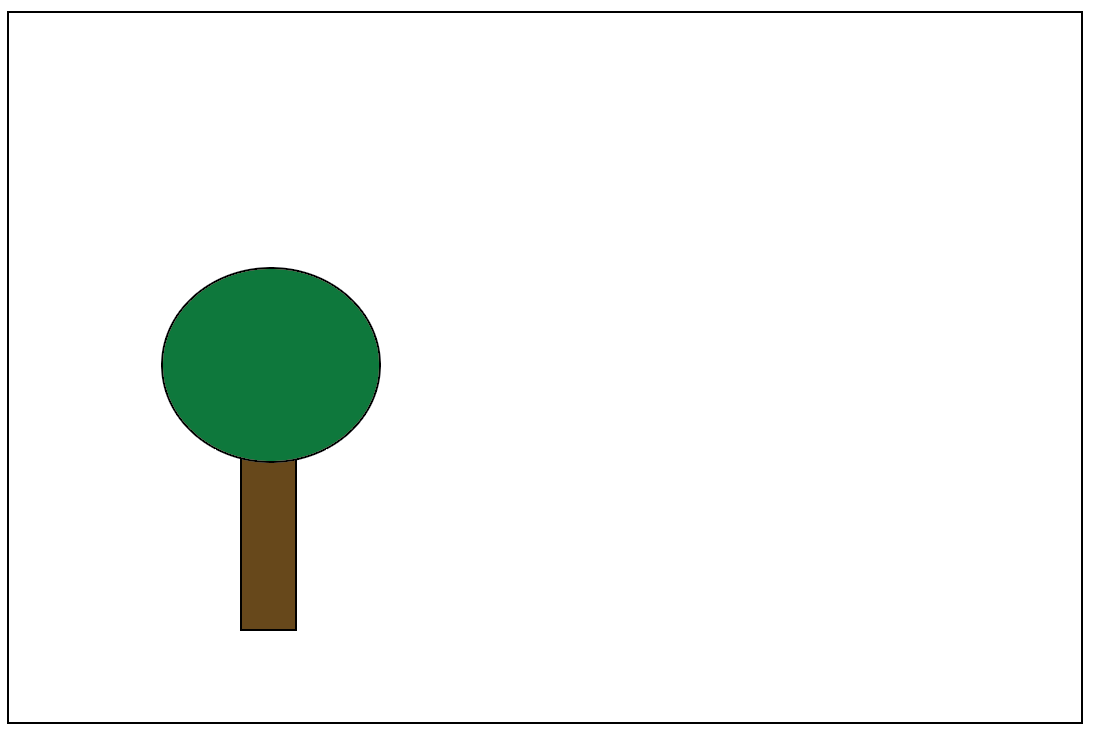
(b)The second snapshot of your work.
Figure 1:The first two snapshots of your project. You can always go back to earlier versions, e.g. starting with an empty canvas.
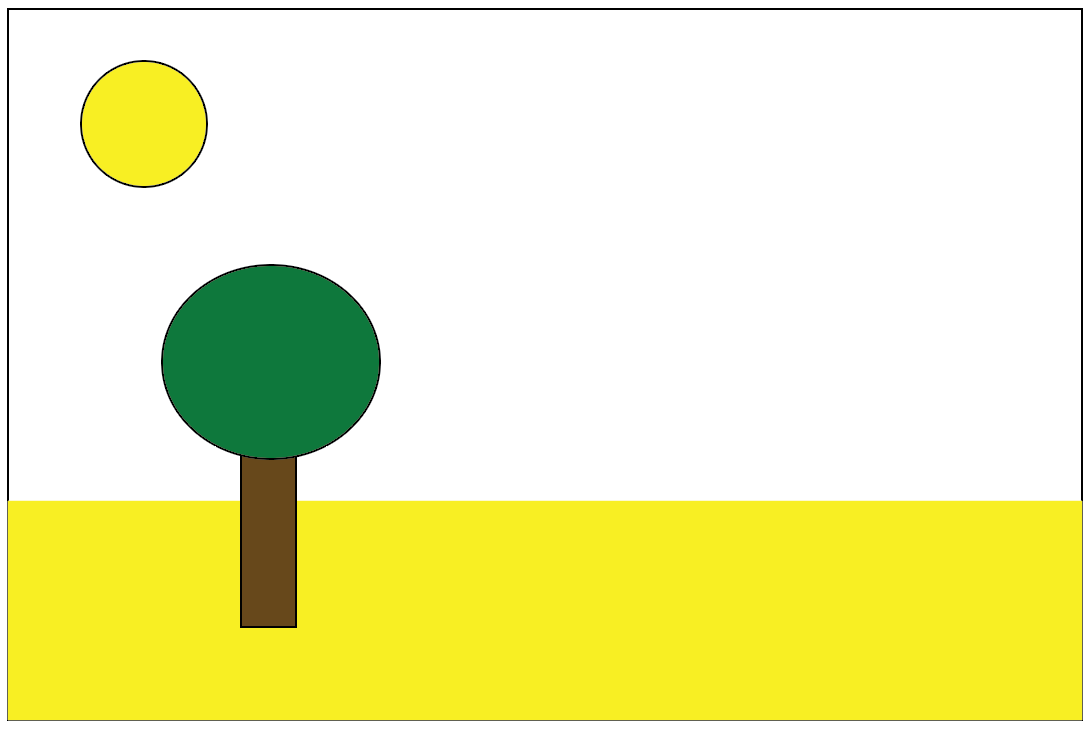
You draw a background and a sun, where you again make a ‘snapshot’ of your work fig_tree_3.
:width: 50% :label: fig_tree_3
The third snapshot of your work.
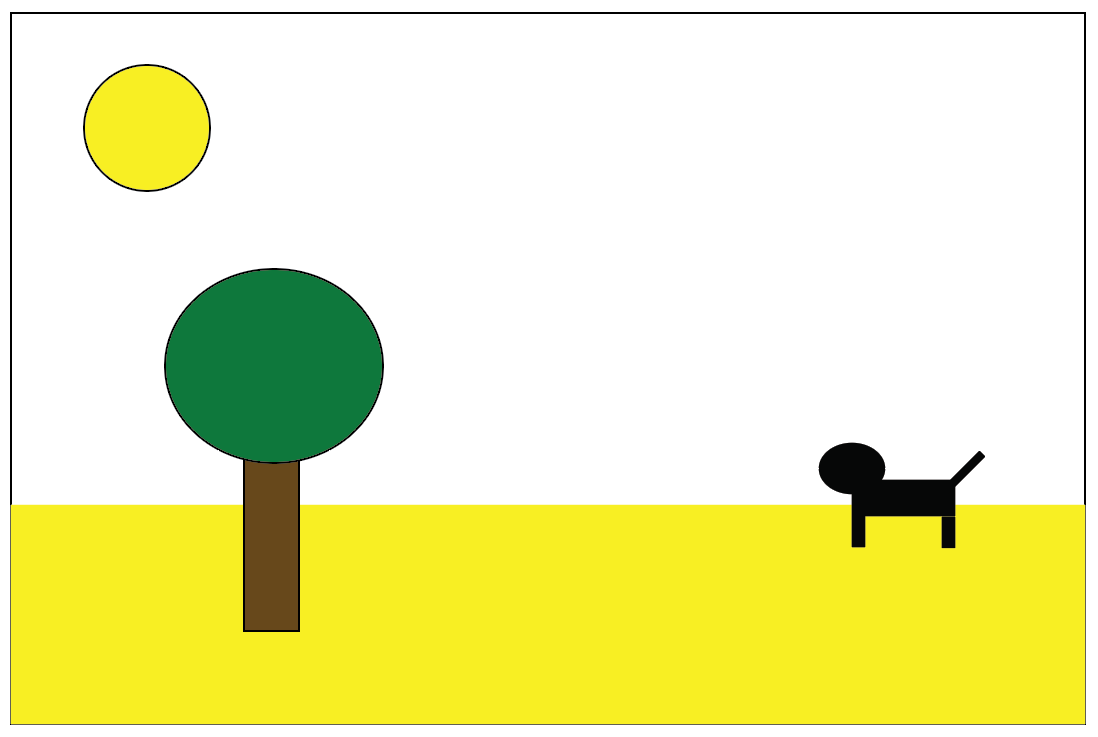
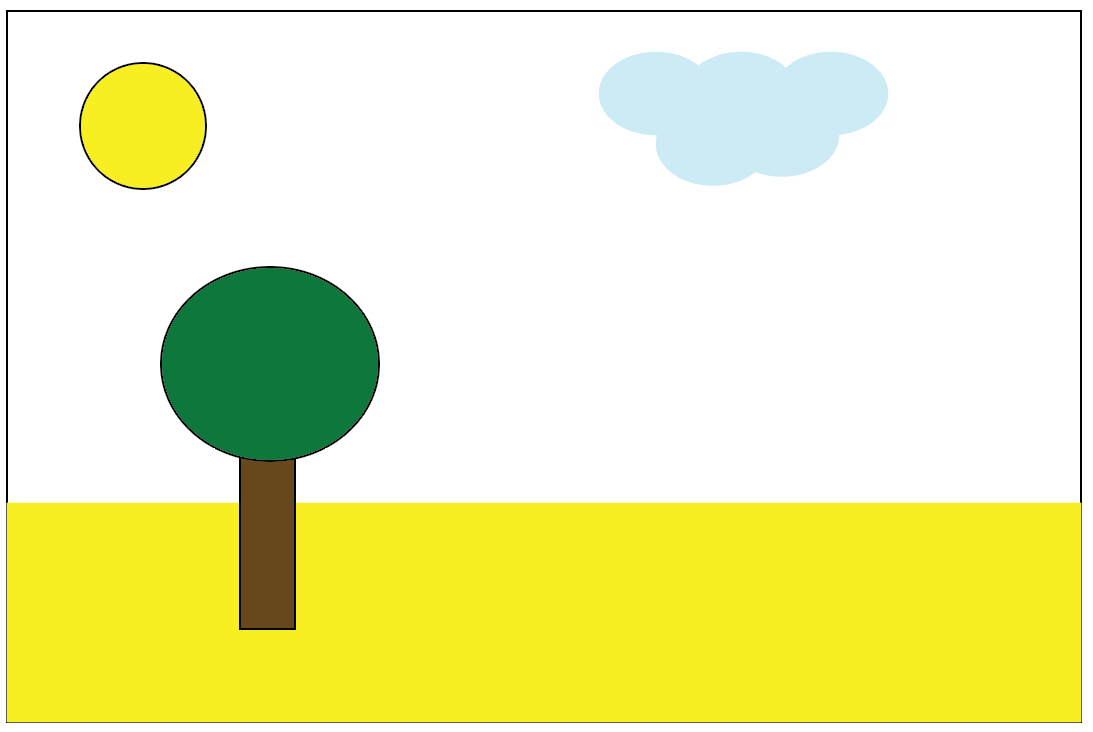
Now it is time for your friend to draw the cat fig_tree_4a while you draw some clouds fig_tree_4b.
(a):width: 80% :label: fig_tree_4a
One ‘branch’ where a cat is added
(b):width: 80% :label: fig_tree_4b
One ‘branch’ where a cloud is added
Figure 3:Two branches, each working based on fig_tree_3
When both are happy you combine these two into one main painting, fig_tree_5. You reconsider step 2 and try to see whether a different background color improves your work, fig_tree_5a. You’ll still have to decide if you are happy with that change, or whether you revert it.
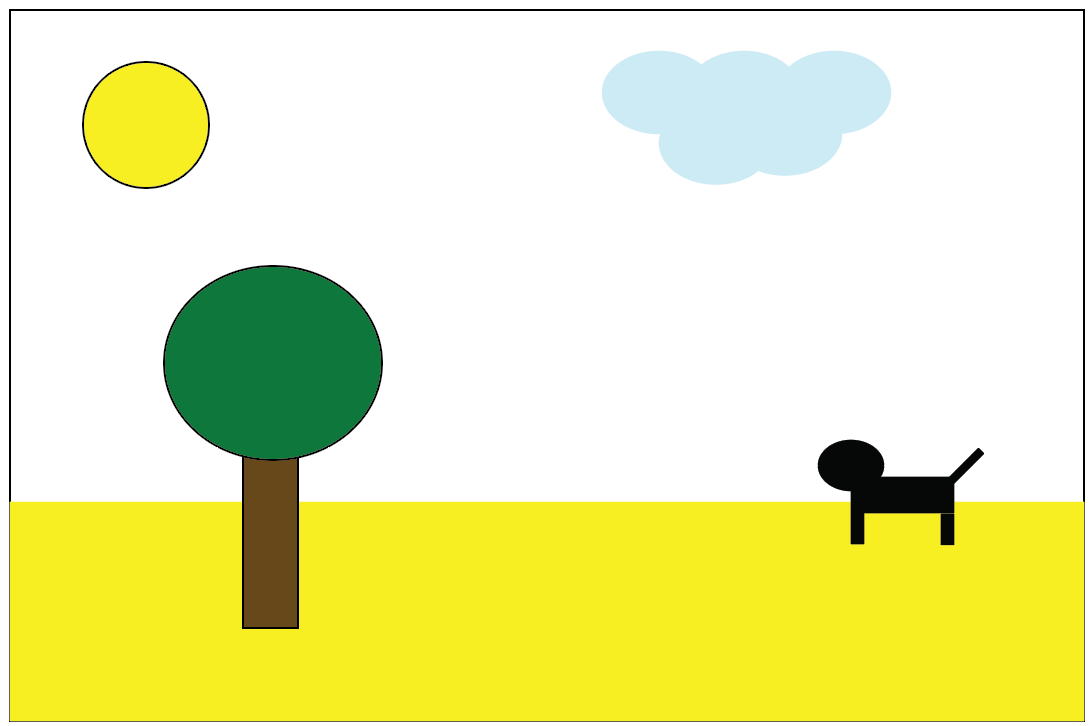
:width: 50% :label: fig_tree_5
After merging the two branches
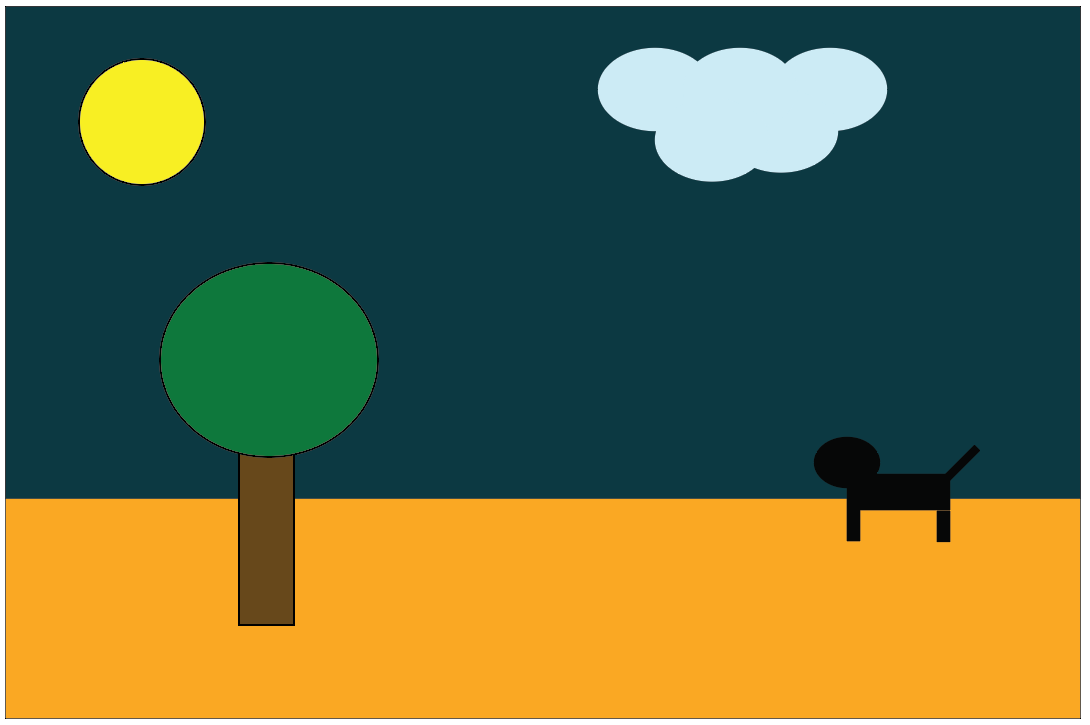
:width: 50% :label: fig_tree_5a
Going back to a previous commit and changing the background
The tree with branches
Based on the idea of making a painting, you get a fair idea of git version control. The idea of git is often explained using a graph like in fig_branches. It is called a tree, and it has branches. Every project has a main branch, for a website this could be the files that the actual website is build from. But you might want to develop your website, change its appearance, but without the users of the website experiencing downtime. This is where the branches come in.
You can create a new branch by running
git switch -c <name_of_new_branch>in the terminal. This will create a new branch. You can check which branches are available and which is the branch you are working on by running:
git branchand subsequently moving between branches by
git switch <name_of_branch>Note the difference -c which creates a new branch!
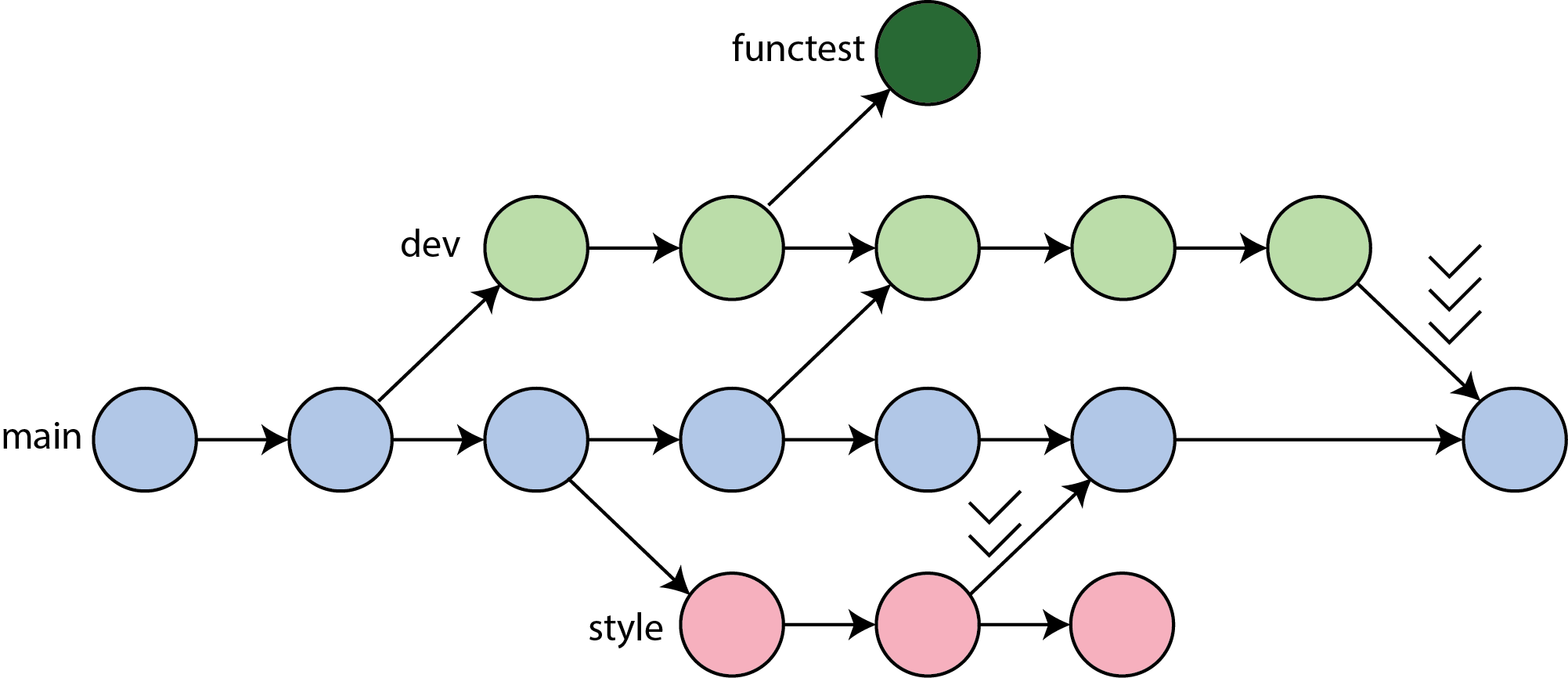
:width: 70% :label: fig_branches
An illustration of branching in Git. Inspired by TTW.
In the example given in fig_branches, one has run git branch -c dev, git branch -c style, and git branch -c functest - not necessarily done by the same person.
When you make a new branch, all files are ‘copied’. You can now edit these files in that branch, where the main branch is left intact. After sufficient development and testing you can merge the new branch into the main. In the given example when a new style is developed and approved.
It might also be that some development is needed but the code is not working, or needed anymore. It might become a stale branch then. It can be removed by running:
git branch -D <name_of_branch>Merge
What you also can see is the possibility to synchronize the main branch to any of the newly made branches, see Figure 7. If you do this locally, you always have to verify that your local files are up-to-date:
git switch main
git pull origin main
After that you can merge:
git switch <new-branch>
git merge main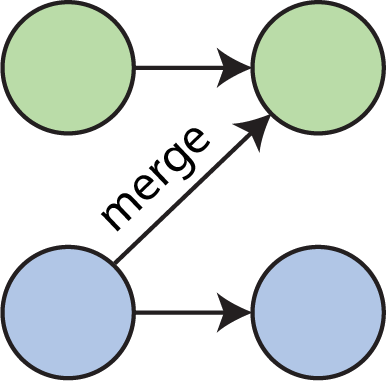
Figure 7:An example of merging.
When merging to main you see in fig_branches check marks. We are able to protect branches and specify rules. For instance, one has to review the code first before allowing to merge. This protects the continuity of the main output. This is then called a merge request (GitLab) or a pull request (GitHub).
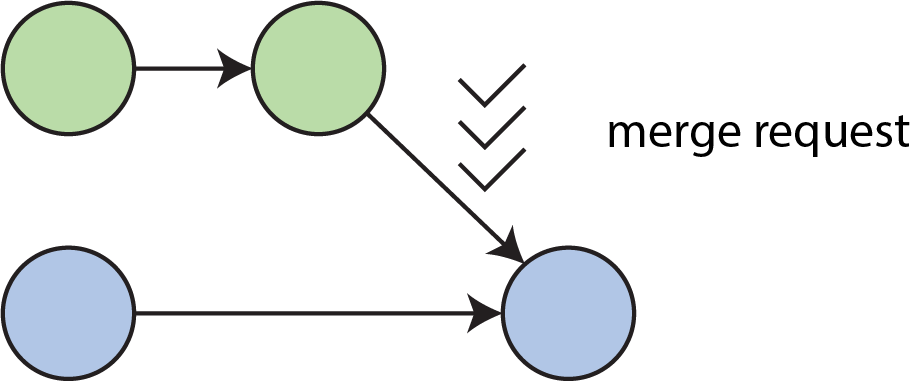
Figure 8:A merge request to a protected branch, where the merge needs both review and approval.
Merge conflict
It might happen that two people (or you in two different branches) have made changes in the same file. We might then hit a merge conflict, where git is not sure which edits to keep and which to discard (or keep both).
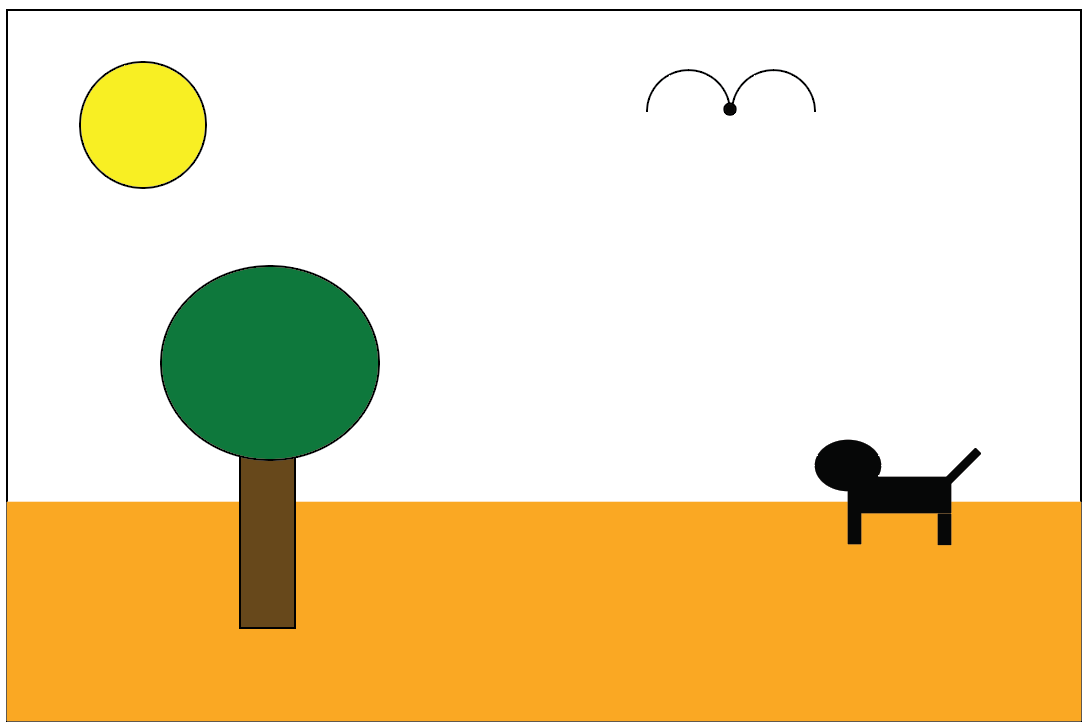
(a):width: 80% :label: tree_conflict_1
In one branch a cloud was added
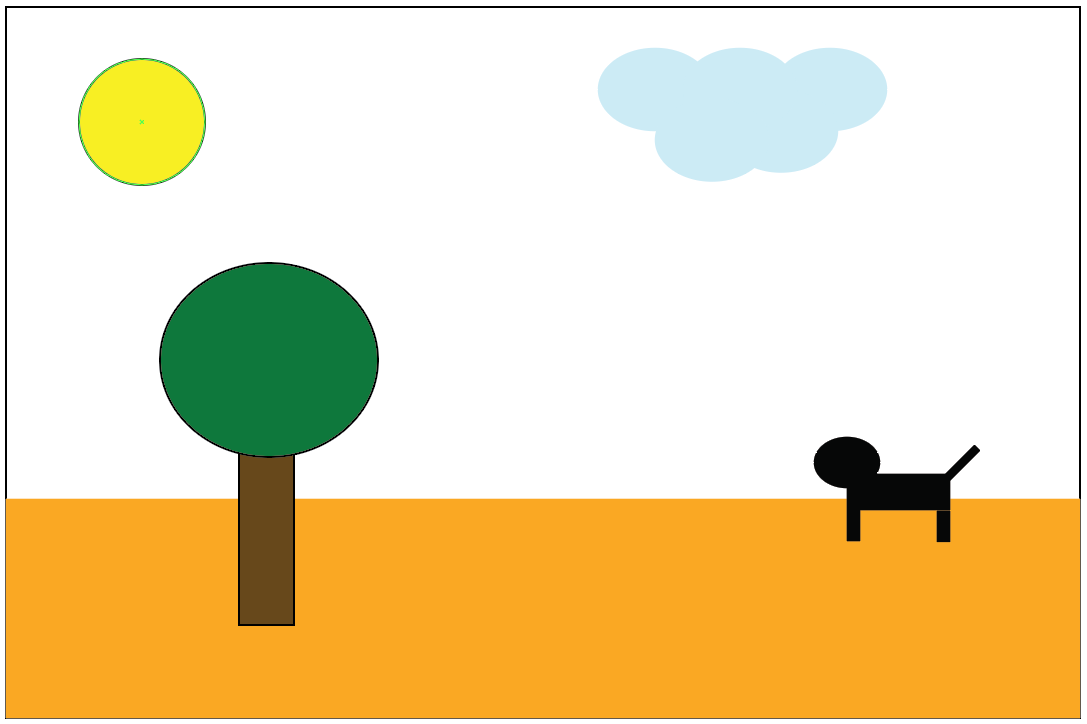
(b):width: 80% :label: tree_conflict_2
In the other a bird
Figure 9:Merge conflicts come into existence when a same part is edited, git doesn’t know what to keep.
You will not to solve the conflict, decide what to keep, what to discard, or keep both...
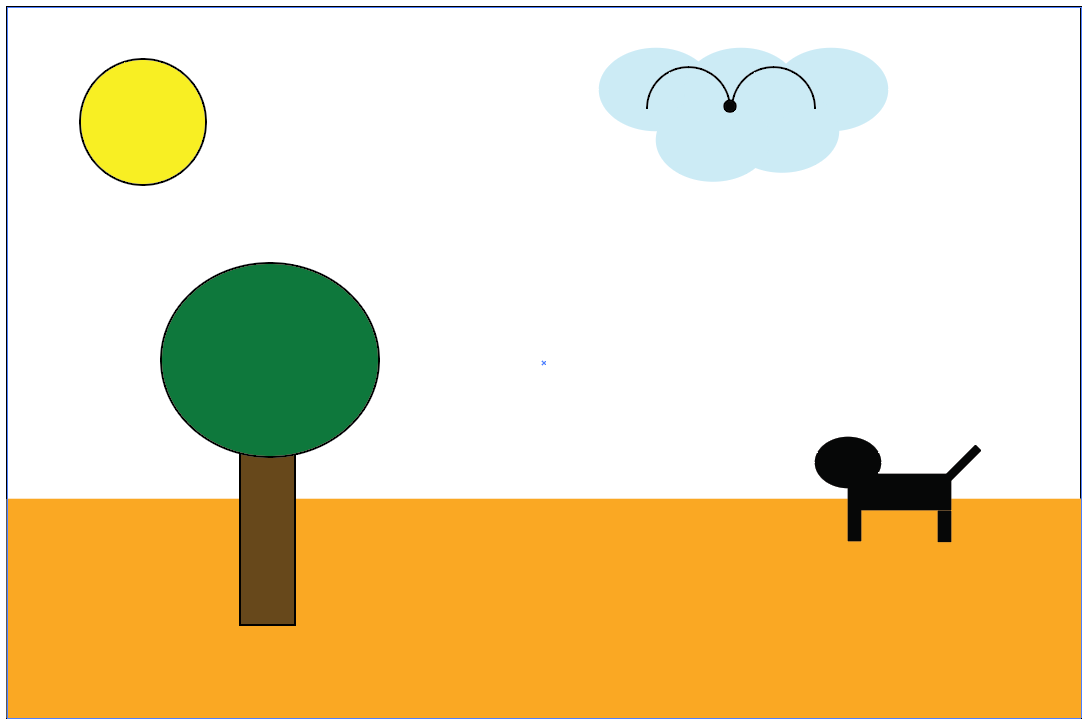
:width: 70% :label: tree_conflict_solved
Merge conflict solved?